
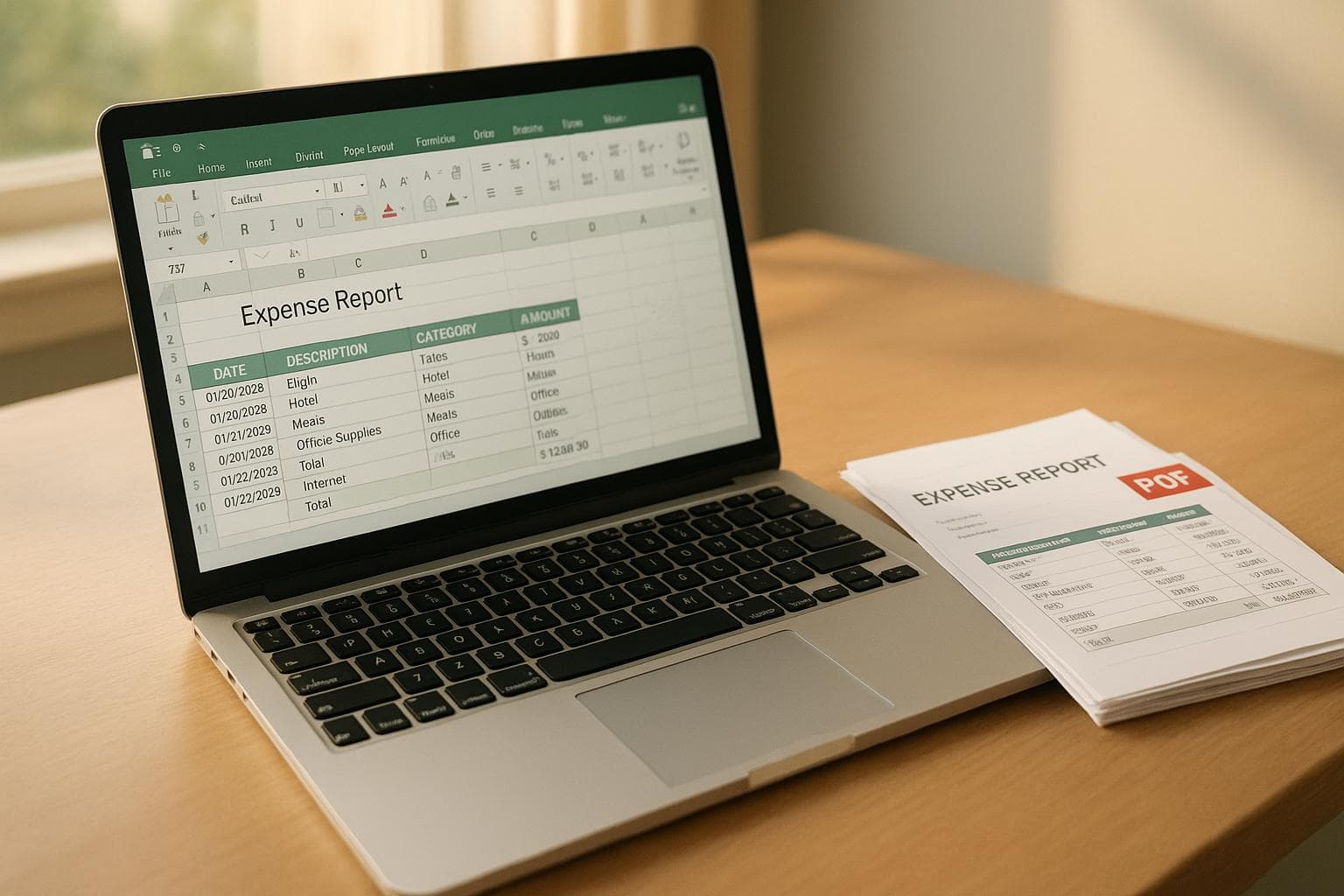
Excel vs PDF: Best Format for Expense Reports
When managing expense reports, Excel and PDF serve different purposes. Excel is ideal for tracking and calculating expenses, while PDFs are preferred for secure, finalized submissions. Choosing the right format depends on your workflow, team size, and reporting needs.
Key Takeaways:
- Use Excel for active tracking, calculations, and collaboration:
- Real-time updates with formulas for totals, averages, and trends.
- Customizable for categories, projects, and policies.
- Cloud versions allow team collaboration.
- Use PDFs for final submissions and storage:
- Consistent formatting across devices.
- Secure with password protection and tamper resistance.
- Compact, easy to share, and ideal for long-term archiving.
Quick Comparison:
| Feature | Excel | |
|---|---|---|
| Editability | Fully editable | Static; requires original file for edits |
| Calculations | Automatic with built-in formulas | Manual calculations only |
| Security | Limited; password-protection optional | Stronger with encryption and read-only |
| Collaboration | Real-time editing in cloud versions | Review-only, no live collaboration |
| File Size | Larger with formulas and sheets | Smaller and easier to share |
| Long-Term Storage | Editable but prone to changes | Fixed format, ideal for archiving |
Bottom Line: Use Excel for data entry and analysis, then convert to PDF for submission and archival. Combining both formats ensures efficiency and accuracy throughout your expense reporting process. Following best practices for travel expense reports further ensures accuracy and faster reimbursements.
The Ultimate Excel Expense Report Template
Excel for Expense Reports
Excel's grid-based design is a natural fit for expense reports. Its rows and columns align perfectly with the structure of most reports, allowing you to track details like transaction dates, vendors, amounts, and categories. This makes Excel a go-to tool for managing business travel expenses, offering the flexibility to organize data in ways that suit your specific needs. Whether you're keeping tabs on individual trips or overseeing expenses for an entire team, Excel provides both detailed tracking and a broader view of your finances.
One of Excel's standout features is its ability to display all your expense data in one place. You can easily scroll through weeks or months of entries, identify spending trends, and make quick adjustments. This kind of visibility is especially helpful when juggling multiple trips or monitoring team-wide expenses.
Benefits of Using Excel
Customization is where Excel truly excels. You can tailor your spreadsheets to track specific details like client names, project codes, or any other business-critical information. Unlike pre-made templates, Excel lets you design your reports without being constrained by someone else's format.
The built-in formulas are another game-changer. For example, type =SUM(D2:D50) to instantly calculate total expenses or use =AVERAGE() to determine your average daily spending. You can even create custom formulas for tasks like calculating per diem rates, converting currencies, or flagging expenses that exceed company policies. These formulas update automatically as you input new data, giving you a real-time snapshot of your financial standing.
Real-time editing is a huge plus when using cloud-based versions of Excel. Team members can collaborate on the same report simultaneously - an employee can add receipts from a trip while a manager reviews the entries. Updates appear instantly, streamlining the approval process.
Excel's sorting and filtering tools make it easy to analyze spending. You can sort by date to view expenses chronologically, filter by category to isolate specific costs, or group expenses by trip to calculate the total cost of a business journey. This flexibility helps you make better financial decisions by presenting data in multiple, actionable ways.
Conditional formatting adds another layer of functionality. For instance, you can set rules to highlight expenses that exceed certain limits, such as meals over $75 or hotel stays above $200 per night. These visual cues make it easier to spot policy violations before submitting reports.
With data validation, Excel minimizes entry errors. Dropdown menus for categories ensure consistent terminology, while rules can prevent invalid entries like negative numbers or future dates. These features help maintain data accuracy across your organization.
Drawbacks of Using Excel
While Excel has plenty of advantages, it’s not without its challenges.
The learning curve can be steep for those unfamiliar with advanced features. While basic data entry is straightforward, creating complex formulas, pivot tables, or macros often requires additional training. Employees who aren't comfortable with these tools may underuse them or avoid them entirely.
Formatting inconsistencies are a common frustration. A report that looks polished on your desktop might appear disorganized on someone else’s device. Differences in column widths, fonts, or even broken formulas can occur when files are shared across different versions of Excel or operating systems.
Manual calculation errors are another risk. A misplaced decimal point or a formula that references the wrong cells can throw off an entire report. These mistakes often go unnoticed until they cause issues with reimbursements or financial reporting.
Version control can quickly become chaotic. When multiple people edit the same report, you might end up with a confusing array of files like "Travel_Expenses_Final.xlsx" or "Travel_Expenses_Final_v2.xlsx." Keeping track of the most current version becomes a challenge.
Security concerns are also worth noting. While Excel files can be password-protected, these protections are relatively easy to bypass. Additionally, there's no built-in audit trail to track who made changes or when, making it harder to monitor sensitive data.
The lack of standardization across an organization can lead to inefficiencies. If every department or employee uses a different template, consolidating data or generating company-wide reports becomes a time-consuming task.
Finally, file corruption is a real risk. Excel files can become corrupted due to software crashes, storage issues, or transfer problems. While recovery options exist, they’re not always reliable. Without proper backups, you could lose critical expense data.
Mobile limitations further restrict Excel’s usability for expense tracking on the go. While mobile apps are available, editing complex spreadsheets on a small screen is cumbersome. Navigating large reports and entering data via touch can lead to errors, making it less practical for travelers who need to log expenses in real time.
PDF for Expense Reports
In professional settings, PDFs have become the go-to format for finalizing expense reports. Converting your working document into a PDF ensures it’s polished, secure, and ready for submission or archiving.
PDFs are particularly useful when submitting expenses, storing reports for future reference, or digitizing receipts for business trips to share with auditors. At this stage, the focus shifts from editing and calculations to creating a document that’s presentable, secure, and easy to store long-term.
Let’s dive into the advantages and challenges of using PDFs for expense reports.
Benefits of Using PDF
One of the biggest perks of PDFs is their consistent formatting. No matter the device or platform, your expense report will look exactly as intended. This ensures that complex layouts, branding elements, and detailed tables remain intact - unlike some editable formats that can distort when opened on different devices.
PDFs also offer security features to protect sensitive financial information. According to Foxit, you can password-protect your files, limiting access to authorized individuals. Additionally, the format’s tamper-resistant nature ensures that finalized reports can’t be easily altered, forged, or duplicated.
Another useful feature is the ability to include electronic signatures. As Foxit explains:
Electronic signatures are just as legally binding as traditional pen-and-ink signatures, plus they are considered more reliable as the person, time, and location of the signature are easily auditable and cannot be forged.
When a manager digitally signs an expense report, it creates a clear audit trail, showing who approved the document, when, and from where.
The read-only default setting adds another layer of protection. Once you convert an Excel file to PDF, recipients can review the report without accidentally altering numbers or deleting data.
PDFs also boast universal compatibility. They can be opened on virtually any device without requiring special software - most web browsers and operating systems have native PDF readers, and free tools are widely available.
For those who still rely on hard copies, PDFs print exactly as they appear on screen. Headers, images, and formatting are preserved, making the printed version look professional and accurate.
Another advantage is their compact file size. A detailed expense report that might take up significant space as an Excel file becomes more manageable when converted to PDF, making it easier to email, upload, or store in the cloud.
For tax documentation and compliance, PDFs provide a reliable format that accountants and auditors prefer. Their unchangeable nature ensures that records remain consistent over time, simplifying audits or tax reviews months - or even years - later.
In short, PDFs prioritize secure and consistent presentation, making them ideal for finalized reports.
Drawbacks of Using PDF
While PDFs excel in presentation and security, they’re not without their challenges - especially when it comes to editing and calculations.
One major drawback is that PDFs are tough to edit. If you spot a mistake after converting - like entering $1,500.00 instead of $150.00 - you’ll need to return to the original Excel file, correct the error, and create a new PDF. This extra step can be time-consuming.
Another limitation is the lack of calculation features. Unlike Excel, PDFs can’t automatically sum totals or calculate averages. Any updates to expenses require manual recalculations, which increases the risk of errors.
Extracting data from PDFs can also be tricky. Although optical character recognition (OCR) tools exist, they’re not perfect. For example, OCR might misinterpret $2,345.67 as “2 345 67,” leading to inaccuracies.
The file conversion process adds additional steps to your workflow. While it’s easy to generate a PDF from Excel, converting it back often results in broken formatting, misaligned columns, and lost formulas - requiring significant cleanup.
Collaboration can also be a pain. PDFs hinder team collaboration compared to Excel’s real-time editing features. While PDF tools allow for comments, someone still has to manually update the original document based on the feedback.
Another challenge lies in form field limitations. While you can create fillable PDFs, they don’t offer the same dynamic features as Excel, such as dropdown menus or automatic calculations.
Mobile viewing is another area where PDFs fall short. Expense reports designed for standard letter-sized pages can be difficult to navigate on smartphones, requiring constant zooming and panning.
Finally, managing versions can get messy. If corrections are needed, multiple PDFs are often generated, leading to confusing file names like "Q4_Expenses_Final.pdf", "Q4_Expenses_Final_Revised.pdf", and "Q4_Expenses_Final_Revised_v2.pdf." This can make it hard to track which version is the most up-to-date or approved.
While PDFs are excellent for finalizing and sharing reports, their limitations highlight the importance of careful preparation before converting your document.
Excel vs PDF: Side-by-Side Comparison
When it comes to expense reporting, Excel and PDF each play a specific role. Choosing the right format for your task can save time and reduce errors.
Comparison Table: Excel vs PDF
Here’s a breakdown of how Excel and PDF stack up across important features for managing business travel expenses:
| Feature | Excel | |
|---|---|---|
| Editability | Fully editable, allowing updates and changes anytime | Mostly static; edits require access to the original file |
| Calculations | Built-in formulas handle totals, averages, and complex data analysis | No calculation features; all math must be done beforehand |
| File Size | Larger, especially with multiple sheets or formulas | Smaller, making it easier to email and store |
| Security | Limited unless password-protected; data can be accidentally changed | Password-protected, tamper-resistant, and read-only by default |
| Shareability | Shareable, but formatting may vary across devices | Universally compatible with consistent formatting |
| Flexibility | Highly customizable with tailored formulas and business expense categories | Static format with minimal flexibility once created |
| Archival Properties | Editable, which may affect record integrity over time | Locked format, ideal for long-term storage and compliance |
| Printing | May need adjustments for proper formatting | Prints exactly as displayed, maintaining layout integrity |
| Collaboration | Real-time editing supported in cloud versions; desktop versions are less collaborative | Easy to share for review but lacks real-time editing capabilities |
| Offline Access | Fully functional offline with desktop versions | Viewable offline with any PDF reader |
| Data Extraction | Easy to copy, paste, and export data | Harder to extract data; OCR tools may introduce errors |
| Professional Presentation | Formatting can vary between devices or software | Consistent, polished appearance across platforms |
This comparison highlights how Excel and PDF serve complementary purposes in expense management.
Why Excel Stands Out for Active Management
Excel dominates in active expense tracking. It’s a go-to tool for nearly 60% of finance leaders, with professionals in accounting and finance spending 38% of their time working in Microsoft Excel. Its strength lies in real-time expense tracking and automatic recalculations, making it perfect for data entry and analysis.
Why PDF Is Best for Finalized Reports
Once your expense report is complete, converting it to PDF ensures your figures are locked and the formatting remains intact. PDF’s tamper-resistant features, combined with encryption and read-only settings, make it ideal for securely sharing sensitive information like credit card numbers or bank account details.
File Size and Workflow Efficiency
File size also plays a role in daily workflows. A detailed Excel workbook tracking quarterly expenses across multiple sheets can grow to several megabytes. Converting the same data to PDF significantly reduces the file size, making it faster to upload, easier to email, and more convenient to store in cloud archives.
The Bottom Line
Excel is your best option for dynamic tracking and real-time updates, while PDF is unbeatable for secure, unchangeable records. Combining the strengths of both formats gives you an efficient, reliable system for managing business expenses.
sbb-itb-386cb5b
When to Use Excel vs PDF
Choosing the right format for your expense reporting can simplify your workflow and reduce unnecessary back-and-forth. The trick lies in aligning the format with each stage of your expense management process.
Use Excel for Tracking and Calculations
Excel is your go-to tool during the active phase of managing expenses - when you're gathering receipts, entering data, and organizing details using a travel expense report checklist. This phase requires flexibility and quick updates, and Excel delivers just that.
For example, imagine you're tracking expenses from a week-long conference in Chicago. If you suddenly remember a $47.50 Uber ride from O'Hare Airport, you can simply add a new row, and the totals update instantly. Similarly, if you need to split a $215.00 team dinner across multiple categories or calculate per diem rates for different cities, Excel makes it easy.
Real-time updates are another advantage. Whether it’s a $3.75 coffee, a $189.00 hotel bill, or a $62.30 client lunch, entering expenses as they happen helps you stay on top of your spending and stick to your budget.
Excel also shines when it comes to analyzing spending patterns. Let’s say your finance team wants to break down how much the sales department spent on travel in Q3 2025. With Excel, you can sort, filter, and create pivot tables to categorize expenses by employee, location, or type. You might discover that airfare made up 45% of total travel costs, while meals accounted for just 18%.
Another bonus? Cloud-based versions of Excel allow multiple users to work on the same file simultaneously. For instance, your assistant could log hotel bookings while you add meal expenses, avoiding duplicate files or version conflicts. Once all the data is entered, it’s time to move to a format that locks everything in place.
Use PDF for Final Submission and Storage
After finalizing your expense report in Excel, convert it to a PDF for secure submission and long-term storage. This ensures your carefully formatted report - let’s say it totals $2,847.63 - looks exactly the same on your manager’s screen as it does on yours. No risk of formulas breaking or columns shifting across devices.
PDF is ideal for submitting expenses to your finance department or manager. Since businesses are required to keep expense records for several years (the IRS suggests at least three, though many companies opt for seven or more), the fixed nature of PDFs ensures your January 2025 report will look identical in 2028, with all numbers and formatting intact.
It’s also a great format for protecting sensitive financial information. Password protection can secure details like credit card numbers or client-related expenses, while permissions can be set to allow viewing but block editing or printing.
Additionally, PDFs are more storage-friendly. A year’s worth of monthly reports in PDF format takes up far less space than their Excel counterparts, making them perfect for digital archives that span multiple employees or fiscal years.
Using Both Formats Together
Combining Excel and PDF allows you to take advantage of their respective strengths, creating an efficient expense reporting process. Use Excel for data collection and calculations, then switch to PDF for submission and archival.
Here’s a practical example: You spend a week at a trade show in Las Vegas, tracking expenses daily in Excel. You log flights, hotel charges, meals, and transportation. By the end of the trip, Excel calculates your total of $1,411.00 and applies the correct tax treatments to each category. Once you’re back in the office, you double-check everything and convert the file to a PDF. You then submit the PDF to accounting, confident that the locked format ensures no accidental changes during the approval process. Meanwhile, you keep the original Excel file in case adjustments are needed later.
This dual approach also works when you need to balance transparency with control. For instance, you might share a PDF summary of department-wide travel costs with your team, while keeping the detailed Excel file - complete with individual employee data - restricted to HR and finance.
Platforms like EasyTripExpenses simplify this workflow, letting you generate reports in both PDF and Excel formats. You can work in Excel during data entry and then export to the format your company requires for submission, all while preserving data accuracy and formatting.
This strategy is especially effective for recurring expense reporting. Use a consistent expense report template each month for tracking, then convert completed reports to PDFs for secure storage. This creates a streamlined system that’s flexible during creation and reliable for long-term record-keeping.
How to Choose the Right Format
Selecting the right format for expense reporting depends on factors like your organization's size, the complexity of your reports, and specific requirements (e.g., freelancers versus larger companies). Let’s break it down.
Start by evaluating your organizational structure. If you're a freelancer or solo professional, you probably value small business expense tracking solutions that offer flexibility over formal documentation. For example, if you’re a self-employed consultant tracking expenses for tax purposes, Excel gives you the freedom to update entries throughout the year. You can tweak categories, recalculate totals, and export data when needed. A simple spreadsheet to track your $1,200.00 monthly travel costs is often enough until it’s time to submit something official - then you can convert it to a PDF.
For small teams of 5 to 15 people, the workflow is a bit different. Collaboration becomes key, but formal approval processes might not be in place yet. Excel is ideal for tracking expenses, especially when multiple team members need to input their data into a shared file. However, once the information is ready for review, converting it to a PDF ensures the numbers are locked and prevents accidental edits. For instance, if your marketing manager submits a $3,450.00 conference expense report, saving it as a PDF ensures that what’s submitted is exactly what gets reviewed and approved.
Larger organizations, typically those with 50 or more employees, often require both formats at different stages. These companies usually have formal expense policies, approval chains, and audit requirements. Excel works as the working document for inputting data, while PDF becomes the official format for submission. Finance departments often prefer PDFs because they’re easier to archive, immune to accidental edits, and maintain consistent formatting across systems.
The complexity of your report is another critical factor. Simple reimbursements, like a $45.00 meal or a $120.00 hotel stay, might only need a basic PDF form. But for more detailed expenses - like multi-day trips requiring per diem calculations, currency conversions, or splitting costs across departments - Excel is indispensable. Take a sales team traveling internationally: tracking a $2,800.00 trip to Toronto involves converting Canadian dollars, applying meal allowances, and categorizing expenses by client project. Excel’s calculation features handle this complexity far better than a static PDF.
Your reporting frequency also matters. If you submit expenses monthly or quarterly, maintaining an Excel template is efficient. You can reuse the same structure, update amounts and dates, and then export it to a PDF for submission. This saves time compared to filling out a new PDF form each period. On the other hand, if you only submit expenses occasionally - say, twice a year - a simple PDF form might be all you need.
Approval workflows are another consideration. If multiple reviewers need to collaborate on a report, Excel allows for comments and edits before submission. But if you’re submitting directly to accounting, a finalized PDF signals that the report is complete and ready for processing. This balance between dynamic tracking and secure record-keeping is important to maintain.
Lastly, think about record retention requirements. For IRS purposes, records need to be kept for three to seven years. PDFs are ideal for long-term storage since they remain intact over time. An Excel file from 2020 might face compatibility issues in 2027, but a PDF will open exactly as it was saved.
For businesses without dedicated expense management systems, tools like EasyTripExpenses support both formats. You can work dynamically during data entry and generate reports in whichever format suits your needs.
Conclusion
When it comes to managing expense reports, the choice between Excel and PDF often depends on the specific stage of your workflow. Excel shines during the data collection and analysis phase. This process is often accelerated by digital receipts that automate data entry. Its formulas and adaptability make it perfect for tasks such as tracking expenses, performing calculations, or handling complex data like currency conversions and departmental budgets.
On the other hand, PDFs are your go-to for security and consistency. Once your expense report is finalized and ready for submission, converting it to PDF ensures the data is locked, preventing errors like a $850.00 charge accidentally turning into $8,500.00. Additionally, PDFs are ideal for long-term storage and compliance with IRS record-keeping rules, as they maintain their formatting and remain accessible without compatibility concerns.
The key takeaway? Use both formats strategically. Excel serves as your active workspace for editing, calculating, and collaborating. Once everything is finalized, switch to PDF for submission, approval, or archiving. This approach combines Excel's flexibility and computational strengths with the reliability and permanence of PDFs.
Your choice may also depend on your specific needs. A freelancer or solo professional might rely heavily on Excel, converting to PDF only when submitting reports to clients or the IRS. Small teams can leverage Excel for collaborative data entry before locking reports in PDF for management review. Larger organizations often integrate both formats into their formal approval and audit processes.
Modern tools make this workflow even smoother. Platforms like EasyTripExpenses handle both formats seamlessly, letting you work in the format that suits each stage of your process without constant conversions. The goal? Spend less time worrying about file formats and more time focusing on what truly matters - running your business efficiently.
FAQs
When should I use Excel versus PDF for my expense reports?
When deciding between Excel and PDF for your expense reports, it all comes down to what you need.
Excel works best when flexibility and detailed calculations are key. It’s great for organizing data, applying formulas, and customizing layouts. If you’re frequently updating or analyzing expenses, Excel is a powerful tool to keep everything in order.
Meanwhile, PDF shines when you need a polished, fixed-format report. It ensures consistency across devices, making it ideal for sharing or archiving. If your goal is to create a professional, uneditable document for review or compliance, PDF is the better choice.
A practical approach? Use Excel to manage and calculate your expenses, then convert to PDF for a professional, finalized report.
Why are PDFs more secure than Excel for submitting final expense reports?
PDFs offer stronger security for submitting final expense reports by allowing files to be set as read-only, ensuring that the data remains unchanged. They also support password protection, which helps safeguard sensitive financial details from unauthorized access. Compared to Excel files, PDFs simplify the process of locking formatting and preventing edits, making them a more reliable option for sharing finalized reports with confidence.
Can I effectively use both Excel and PDF for managing expense reports?
Using Excel and PDF together can be a smart way to handle expense reports efficiently. Begin by organizing and calculating your expenses in Excel. Its editing features, formulas, and data analysis tools make it perfect for managing numbers and making adjustments. Once your report is complete, convert it to a PDF. This ensures the formatting stays consistent, makes sharing simpler, and offers a secure way to store records.
By combining Excel's flexibility with the polished presentation of PDFs, you can create professional and easily accessible expense reports.